Note: these instructions are valid for Firmware versions 1.x and 2.x. For firmware 3.x and newer, see:
How to use Wi-Fi to upgrade your HDS firmware (v3.0.0 and above)
In this tutorial, I'll cover how to upload new firmware via Wifi for your Half Decent Scale.
To go into SETUP MODE:
hold your left fingers down on the O button and ▢ button at the same time
You will see HDS SETUP 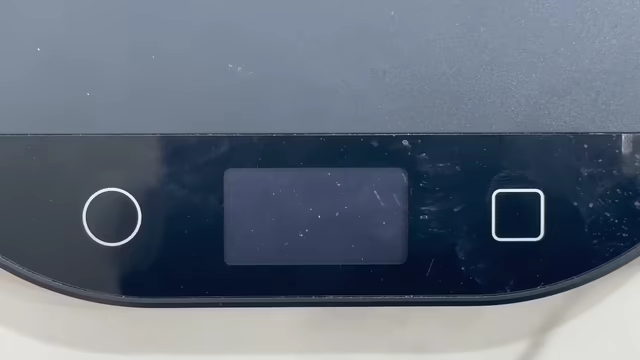
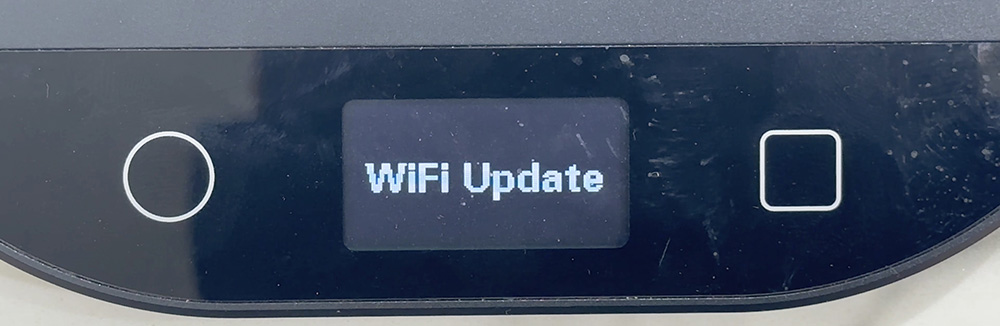
To go into Wifi Update Mode:
Tap the O button to move the cursor to "WiFi Update"
Tap the ▢ button
Tap O once to Choose "Wifi Update" again
Tap the ▢ button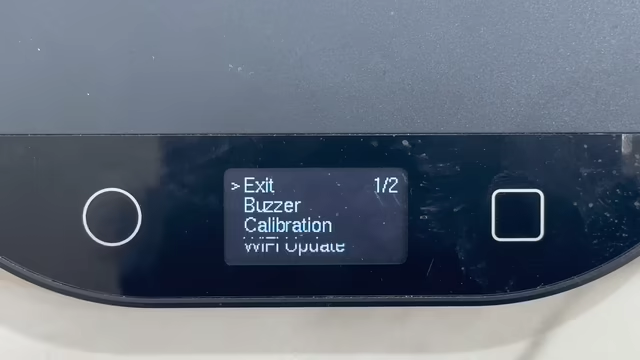
To upload a new firmware via wifi:
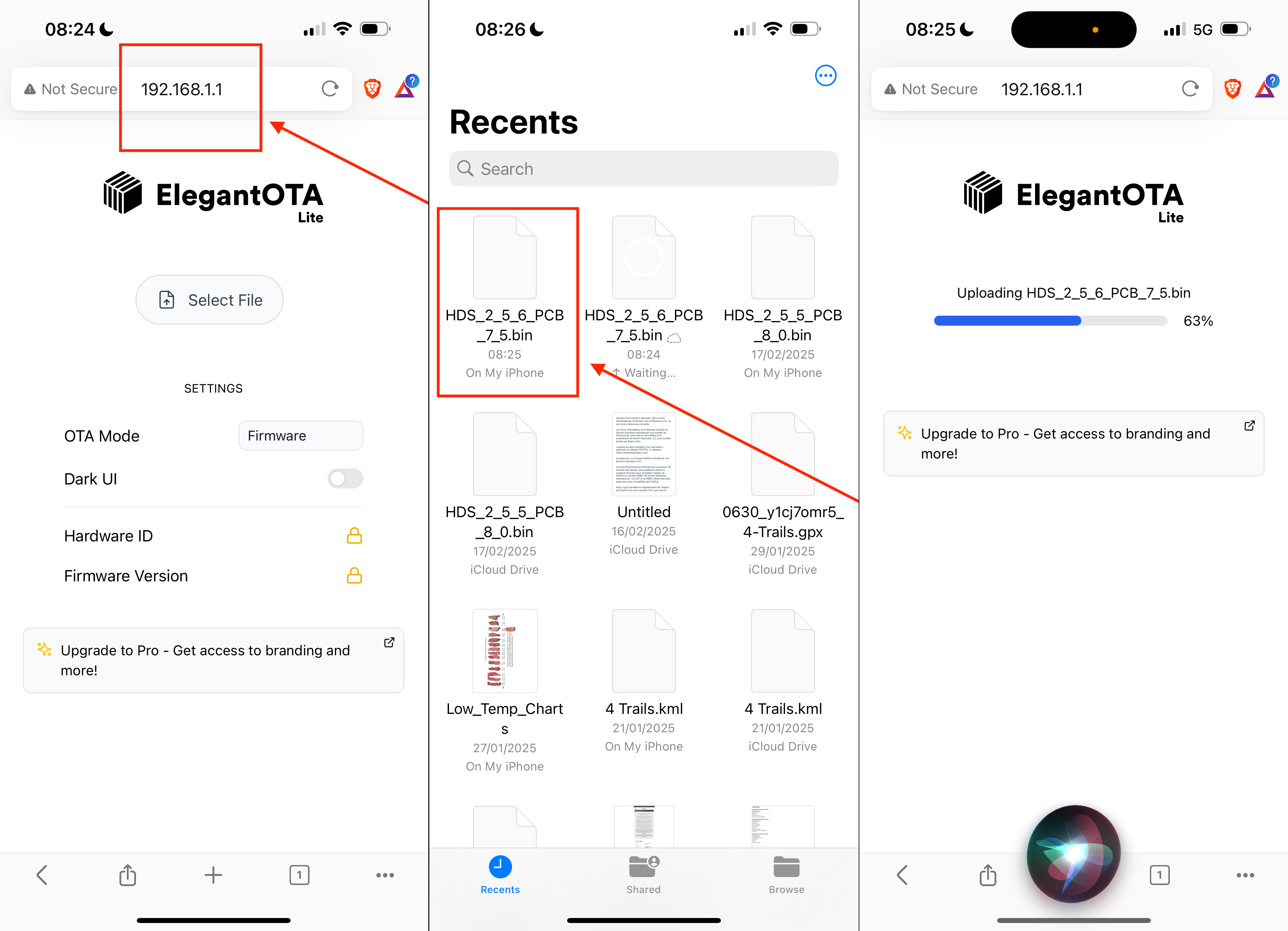
First, download the wifi firmware image, to your computer or your mobile device. We'll call this the "computer"
Mobile devices are very handy for updating the scale (ie iPhone, iPad, Android Device)
With your computer, connect to the "Decent Scale" Wifi hotspot
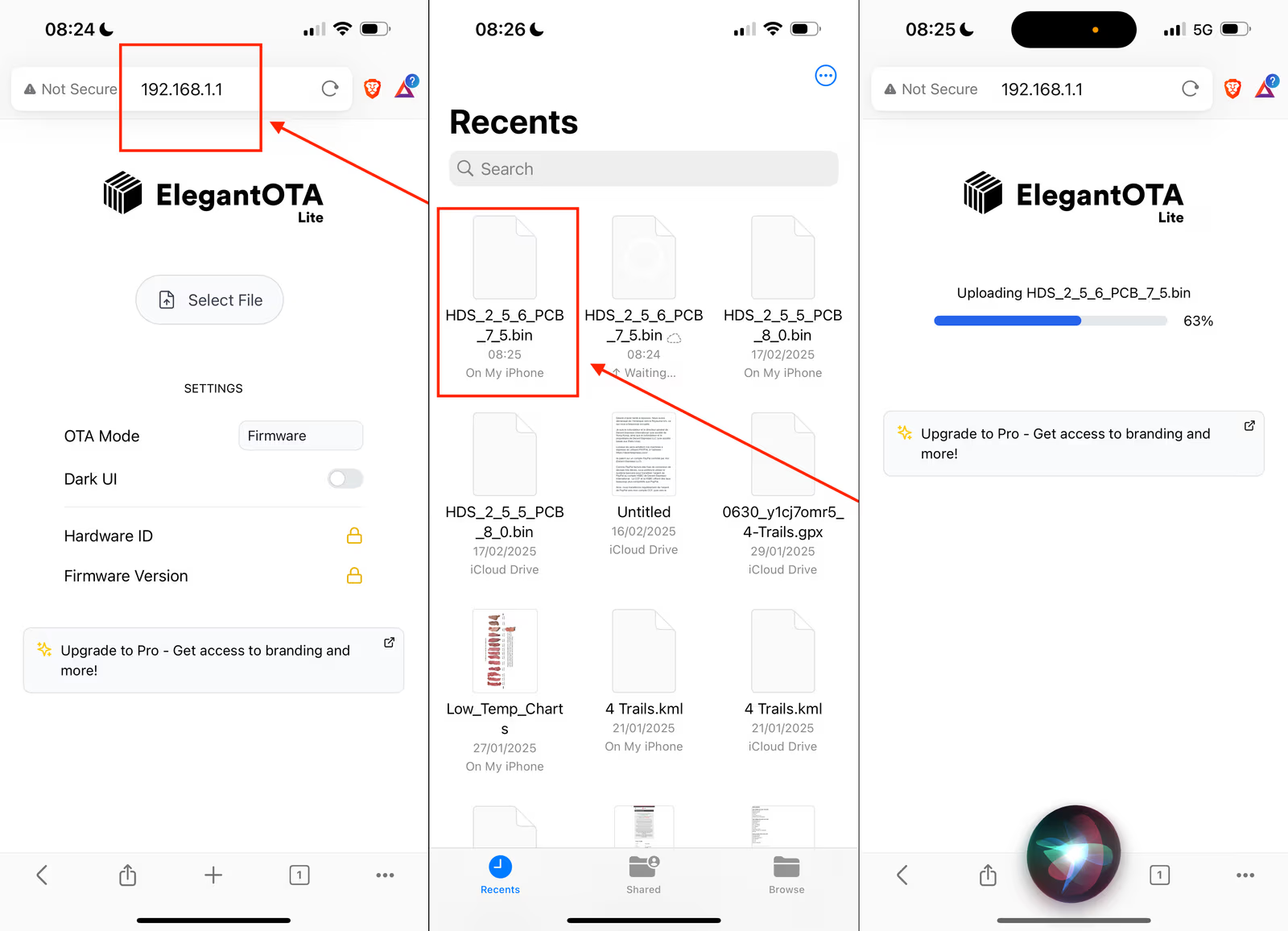
With your computer, open a web browser, and go to http://192.168.1.1
Specify the firmware file you previously downloaded and upload it.
The scale will reboot after the upgrade
To confirm the upgrade worked:
Go into HDS SETUP mode (remember, hold down O and then also tap ▢ when you see the HDS message)
Go to ABOUT and read the firmware version, which should now equal what you just uploaded.
Half Decent Scale Manual: table of contents
#decentscale #ota #firmware #update